
Multistream and director console
Broadcasting a multi-lobby tournament usually means twenty browser tabs and switching scenes by hand. The NEMIX multistream collects the registered teams streams, tells you who is live, and gives you an address to paste into OBS as a Browser source, which updates itself while the tournament runs.
Plus plans
Multistream is included in the Plus plans: Starter Plus, Pro Plus and Yearly Plus. Access is tied to the server the license is active on, not just to your account. Without Plus the Multistream tab of the Stream page stays visible with a lock.
Where the streams come from
You do not have to collect anything by hand. The stream link is one of the registration form fields: when a team registers and fills it in, its channel automatically enters that tournament multistream.
- Teams without a link are simply skipped: nothing breaks.
- You can make the field required, if you want everyone to broadcast: Tournament → Game rules → Stream link required.
- If a captain gets the link wrong or left it out, you add it yourself from Stream → Multistream → Add stream: pick the team and paste the Twitch channel (the channel name alone is enough), without redoing the registration.
Note
Multistream embeds Twitch: you need Twitch channels, links from other platforms do not work here. The streaming link field is described in detail in the team registration page.
The team streams
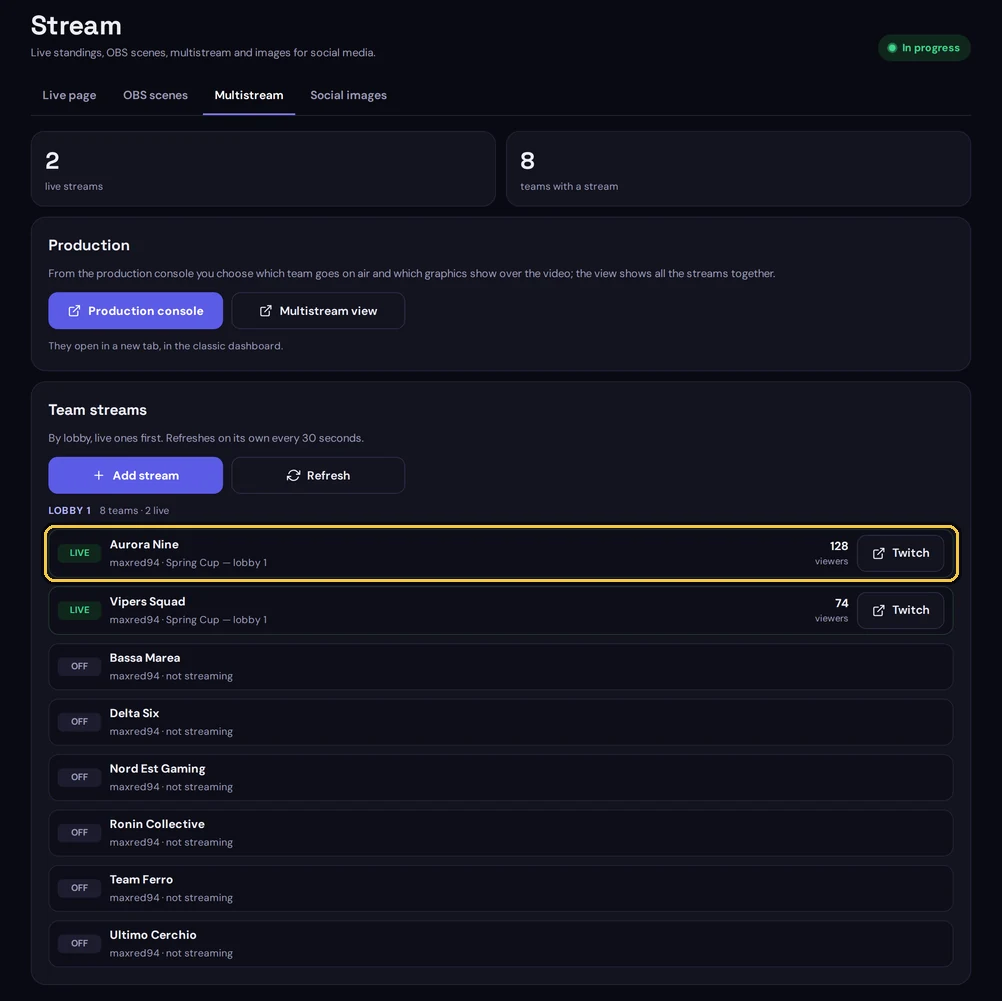
In the dashboard, Stream → Multistream shows every team with a linked stream, grouped by lobby and with whoever is live first. At the top you see how many streams are live and how many teams have a stream.
- LIVE or OFF status read directly from Twitch, not declared by the team.
- For whoever is live: broadcast title and viewer count.
- Each live stream opens on Twitch with one click, if you need the original source.
- The list updates itself every 30 seconds; Refresh reloads it right away.
OBS scenes
A scene is an address you paste into OBS as a Browser source. Multistream scenes sit in the same list as the standings scenes, in Stream → OBS scenes: each one has its own address and its own graphics, so you can prepare several (for example one per lobby) and switch between them from the OBS mixer.
- 1In Stream → OBS scenes press New scene and choose Multistream.
- 2Choose the scene lobby (or all of them) and press Create scene.
- 3With Configure you decide the team on air and the graphics; with Copy URL you copy the address.
- 4In OBS you add a Browser source, paste the address and set 1920 × 1080.
- 5Turn on «Refresh browser when scene becomes active». The page updates itself: no need to reload after every match.
Configure opens the scene settings, which save themselves with every change and go on air within seconds, without changing the address:
- Team on air: the stream in the foreground, or Automatic (the first live stream).
- Scene lobby: standings and streams of a single lobby, or of the whole tournament.
- Scene graphics: standings (top 5 or full), scrolling standings, on-air team roster and team banner, each one to switch on, position and resize.
- URL 2: full multistream is the address Copy URL gives you: on-air stream with audio, graphics and the other live teams. URL 1: graphics only is for when you capture the Twitch stream separately in OBS.
Heads up
The scene address is an access key: whoever has it sees the scene without logging in. Do not publish it. If it leaks, press Revoke on the scene (it asks you to type a confirmation word) and create another one: the old address stops working immediately.
The address requiring no login is deliberate: OBS has no browser carrying your session, so the scene has to work on its own. That is why it can be revoked at any time.
The director console
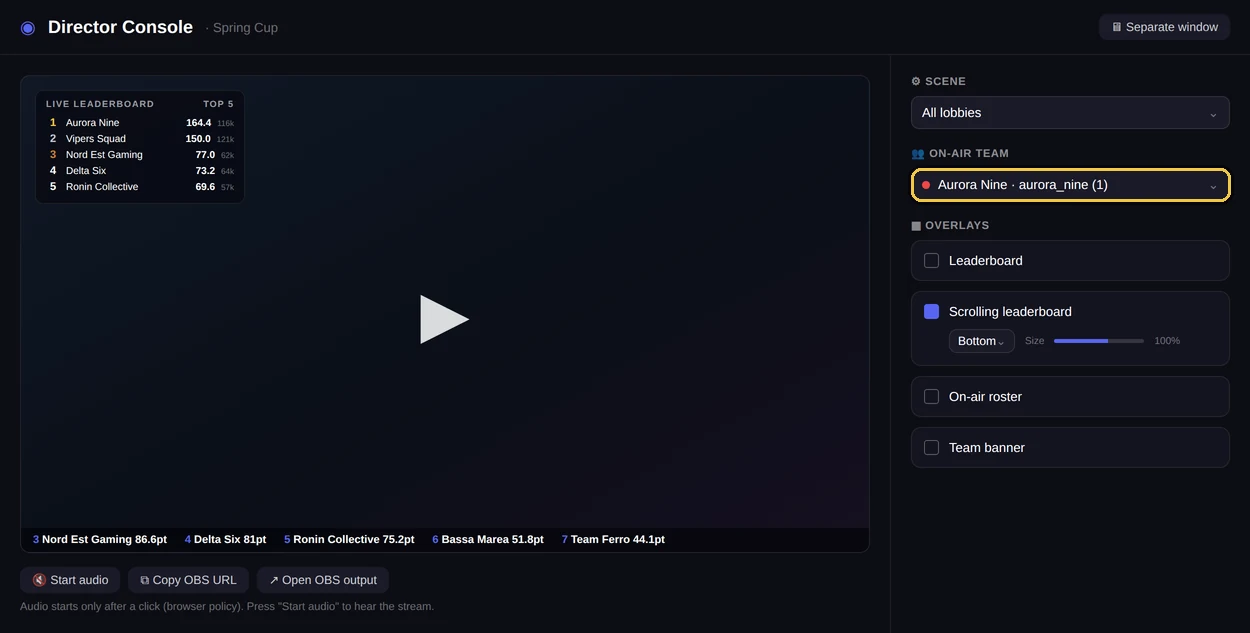
The director console is the panel you steer the scene from while on air, without touching OBS and without changing the address. What you decide here is reflected on the scene already framed.
From the dashboard
You open it from Stream → Multistream, Production box, Production console button. Next to it is Multistream view, with every stream together and the lobby filter, to keep on a second screen. Both open in a new tab in the classic dashboard (app.nemixbot.com), with the same login. Team on air, lobby and graphics can also be changed from Configure on the scene.
| Control | What it does |
|---|---|
| Main stream | Picks which stream fills the large tile. The others stay as secondary. |
| Lobby | Narrows the scene to a single lobby, or shows them all. |
| Overlays | Decides what appears over the video: standings, scores, team names. |
The practical upside is that you change framing during the broadcast without touching the OBS configuration: the source stays the same, what it shows changes.
If you only need the standings
Multistream collects the teams streams. If all you need is the standings updating on screen, there is a separate tool, simpler and available on every plan.
Only need the standings as an overlay? Live standings for OBS, included in every plan.Note
The two tools are independent and you can keep both on screen in OBS: the multistream as the background and the standings on top.
Getting the broadcast right
- Ask for streaming links at registration, not on finals day: collecting them later is the surest way to lose half of them.
- Create and test the scenes before the tournament starts: the scene shows that tournament teams, but you can test the address in advance with Preview.
- Keep a second scene with different graphics ready: switching scene live is faster than reconfiguring.
- When the tournament is over, revoke the scenes you no longer need. It takes little (it only asks you to type a confirmation word) and closes access.
Frequently asked questions
Is multistream included in every plan?
No, it is included in the Plus plans. The check happens on the server you use the dashboard from, so the license has to be active on that server.
Do I need to install anything in OBS?
No. You only need a Browser source with the scene address, which is a standard OBS feature.
If I change the scene configuration, do I have to copy the address into OBS again?
No. Team on air, lobby and graphics are saved on the scene and reach the broadcast on their own: the address stays the same. Only the two switches under URL 2 (standings and banner) change the address to copy.
What happens if a team goes offline mid-tournament?
Live status comes from Twitch, so the scene notices on its own and shows it as offline. You can change the main stream from the director console or from Configure, and filter by lobby in the multistream view.
Can I share the scene address with a collaborator?
Yes, but treat it like a password: whoever has the address sees the scene without logging in. If you need to cut access, revoke the scene and create a new one.
Do I need multistream to get standings in overlay?
No. Live standings are a separate tool, available on every plan, with their own guide page. Multistream is for when you also want the teams streams.