Live standings for OBS
The live standings are a page showing the tournament in real time, which OBS can pick up as a Browser source. Nothing to install: you copy an address from the panel, paste it into OBS, and the standings appear over the game, updating on their own as results come in.
Every plan
Live standings are included in every plan, trial included. You do not need a Plus plan: that one is for multistream, which is a different tool.
What it is for
People watching a tournament want to know who is winning without waiting for the caster to say it. Live standings solve that: they sit over the game, update on their own, and nobody has to switch scenes by hand when a result comes in.
- It serves you, broadcasting, as a source in OBS or any other software that accepts web pages.
- It serves the audience, with a link to share on Discord: whoever opens it sees the same standings from their phone.
- It works even without broadcasting: it is still the fastest way to show everyone how things stand.
Getting it into OBS, step by step
- 1Open the dashboard and go to Standings, picking the right tournament if you have more than one.
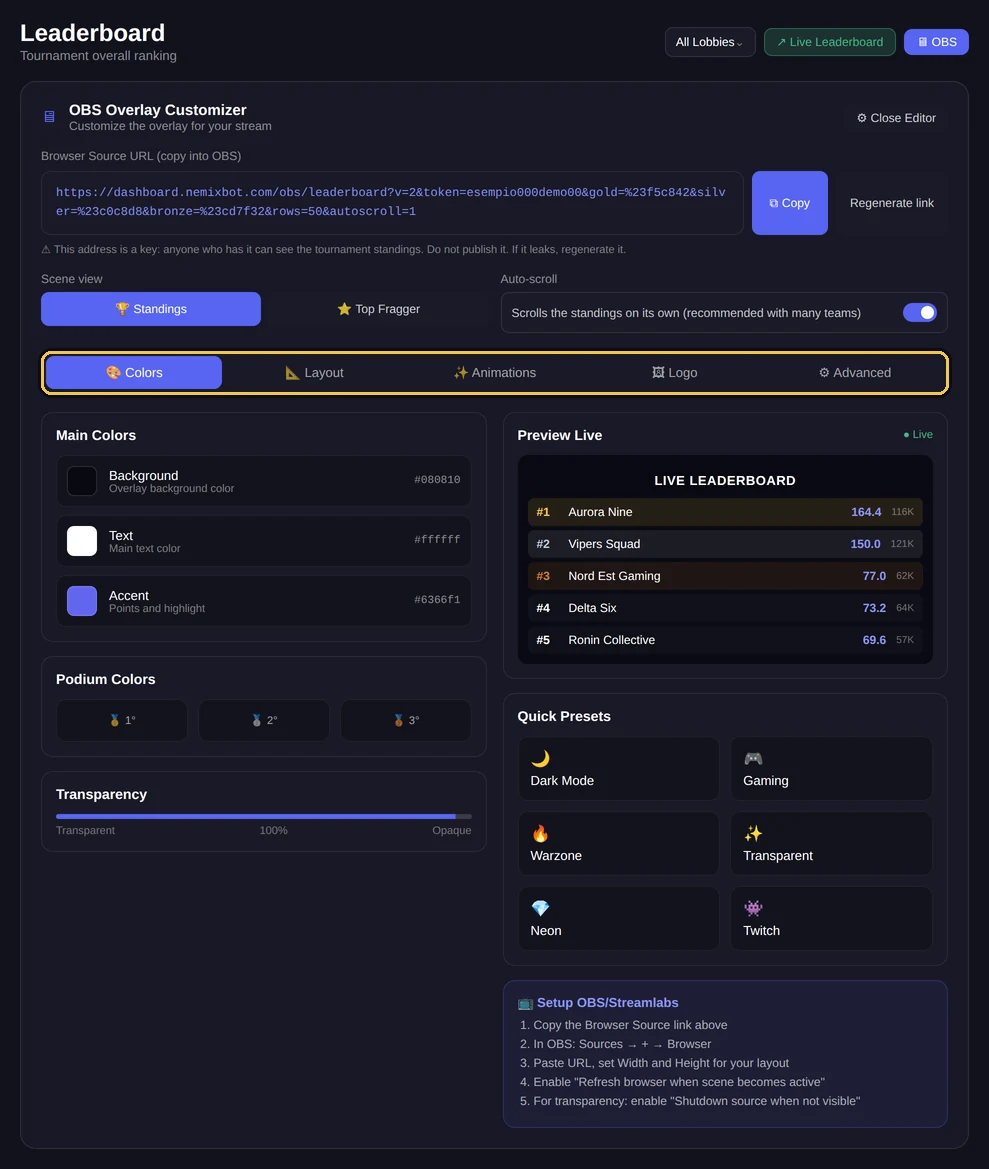
- 2Press the OBS button at the top: the panel with the scene address opens.
- 3Press Copy. The address on screen and the copied one are the same thing, so you can trust either.
- 4In OBS add a Browser source and paste the address into the URL field.
- 5Set width and height according to the chosen layout: the sizes are in the table below.
- 6Confirm. The standings appear and from then on update on their own: you never have to refresh anything.
Note
You can prepare and test the scene before the tournament starts. Until there are results the standings are empty, but the address already works.
Layouts and their sizes
The layout decides the shape of the scene. You pick it in the panel, in the Layout tab of the OBS editor, and each one has its recommended Browser source size.
| Layout | What it is for | When to use it | Size |
|---|---|---|---|
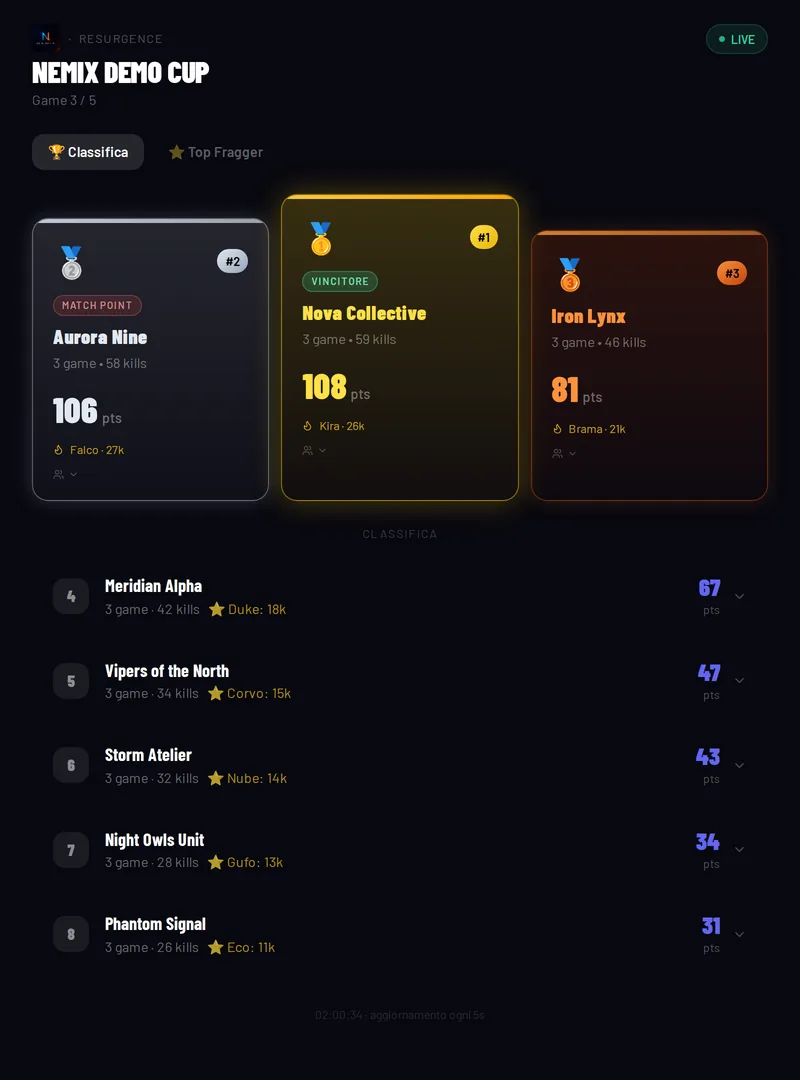
| Vertical | Full standings, podium and list | Between games, or as a waiting scene | 800x1080 |
| Ticker | Bottom strip scrolling continuously | Always on during play, under the action | 1920x110 |
| Sidebar | Narrow column beside the game | During play, with the game feed resized alongside | 420x1080 |
| Lower third | Bottom band with the top places, static | As a cut-in, when the caster talks about the standings | 1920x260 |
| Compact | Dense list, many teams in little space | Screen corner, second monitor, small scenes | 480x900 |
| Spotlight | One team alone, big, with its roster | Interviews, highlights, when one team is being discussed | 900x500 |
| Grid | All the teams in side-by-side columns, 2 to 4 | Full screen between games, with many teams | 1920x1080 |

Note
Scrolling speed is set from the panel: slow, normal or fast. With few teams the list repeats itself, so the strip is never half empty.
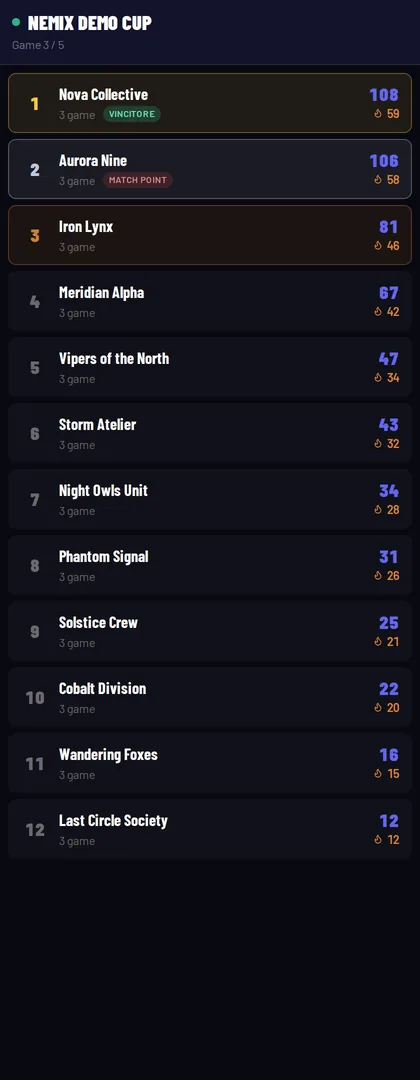
The Sidebar is the layout productions keep on while the game runs: you shrink the game feed and the standings take a column beside it, always visible. Tight rows, no podium and no roster: at 420 pixels wide you want what matters while watching play.
The Lower third is the ticker still cousin, and it serves another moment: the ticker stays on and nobody looks at it, the lower third shows for ten seconds when the caster says "let us see where we stand", then goes. That is why it does not scroll — it has to read in one glance — and shows few teams, big.

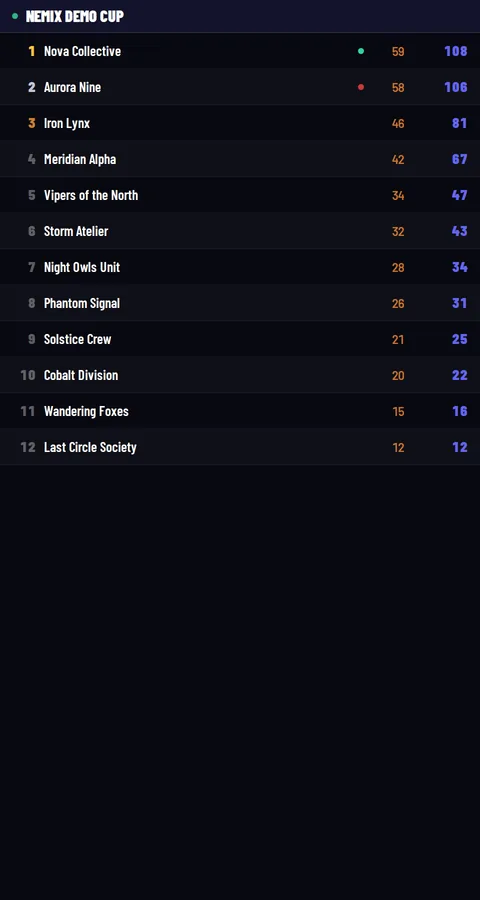
The Compact gives up podium, roster and breathing room, and in exchange fits three times the teams. It is the choice when scene space is tight but the teams are many.
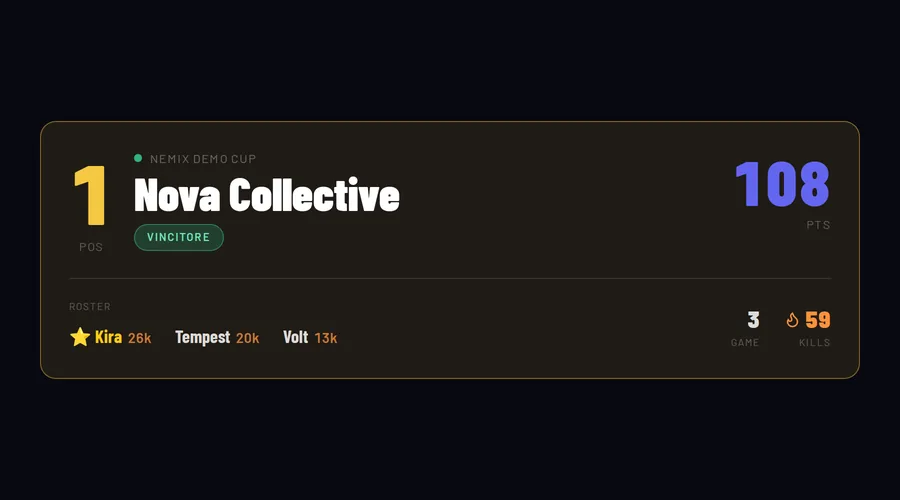
The Spotlight instead removes everything except one team. It is for when the caster is talking about that one, or during an interview: the others are noise at that moment. It shows position, points, matches, kills and the roster with each player kills.
Note
The Spotlight is a team view, so it does not combine with Top Fragger: picking it, the panel takes the view back to standings.
The Grid puts all the teams on screen at once, in side-by-side columns: from the panel you choose how many, 2 to 4. With many teams and a scene to fill — the general recap between games — it is the layout that leaves nobody out.
The two views: standings and top fragger
The same scene can show the team standings or the player kill leaderboard. You pick it in the panel, next to the address.
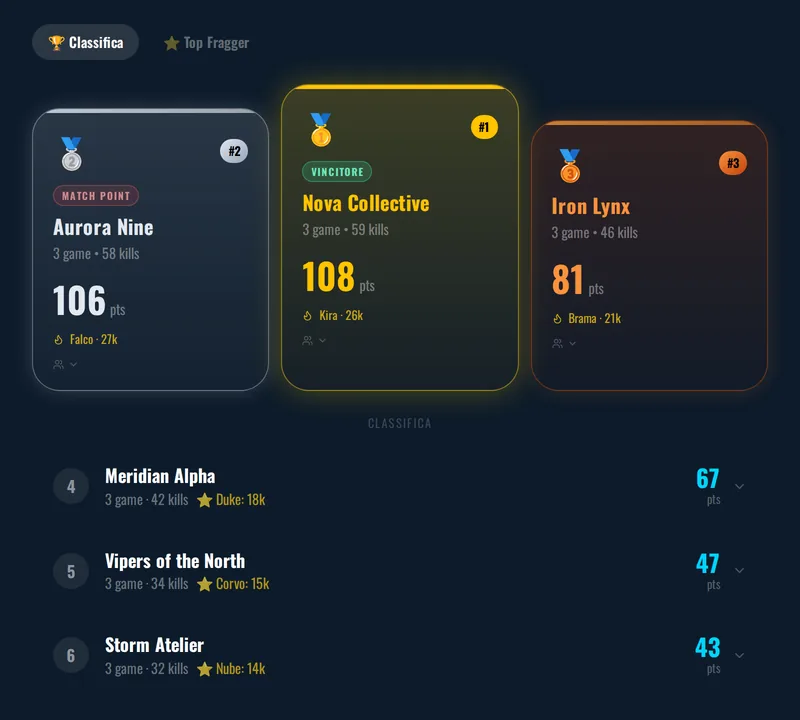
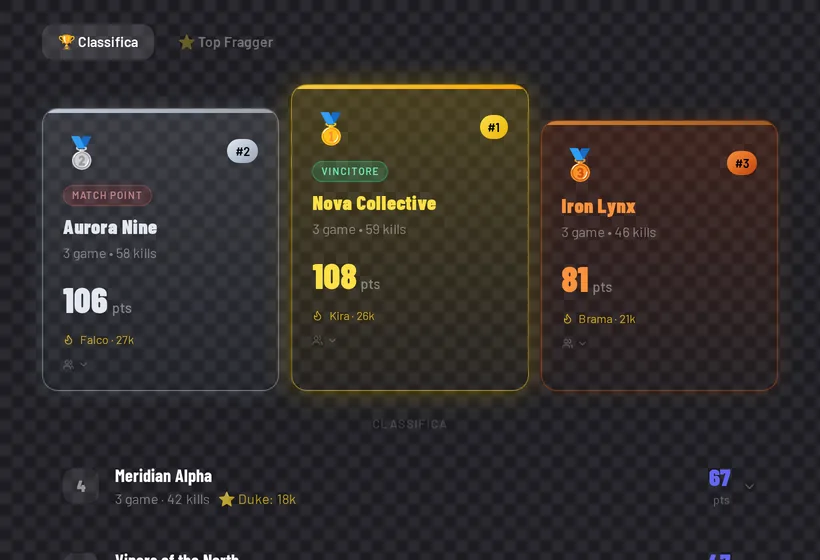
- Standings — teams ordered by points, with the podium highlighted.
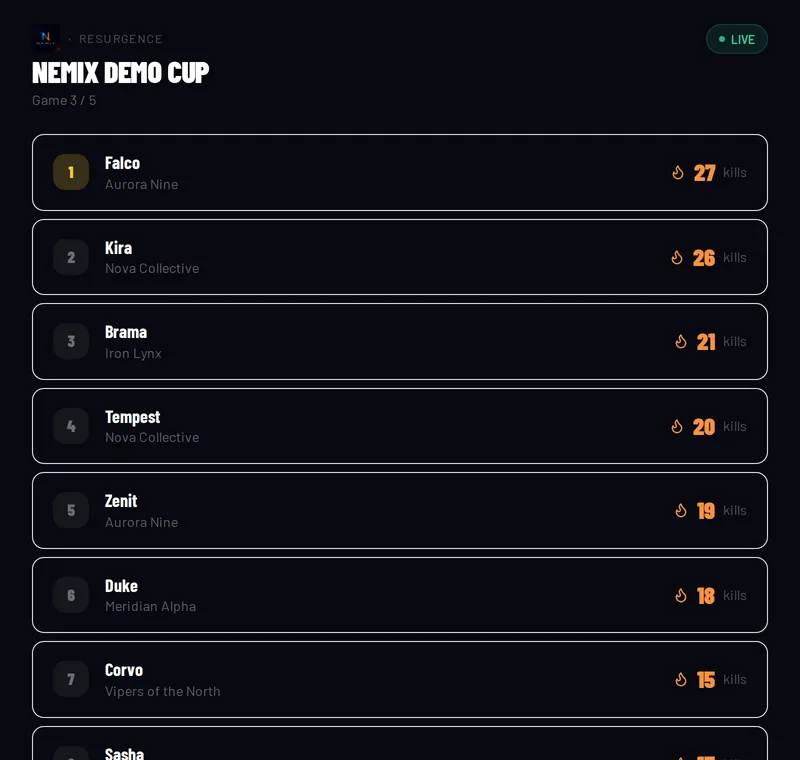
- Top Fragger — players ordered by kills, each with their team beside them.
When you fix a view, the buttons to switch disappear from the scene: nothing on air should be clickable by accident. If you want both, prepare two scenes in OBS and switch between them from the mixer.
Two different links, two different keys
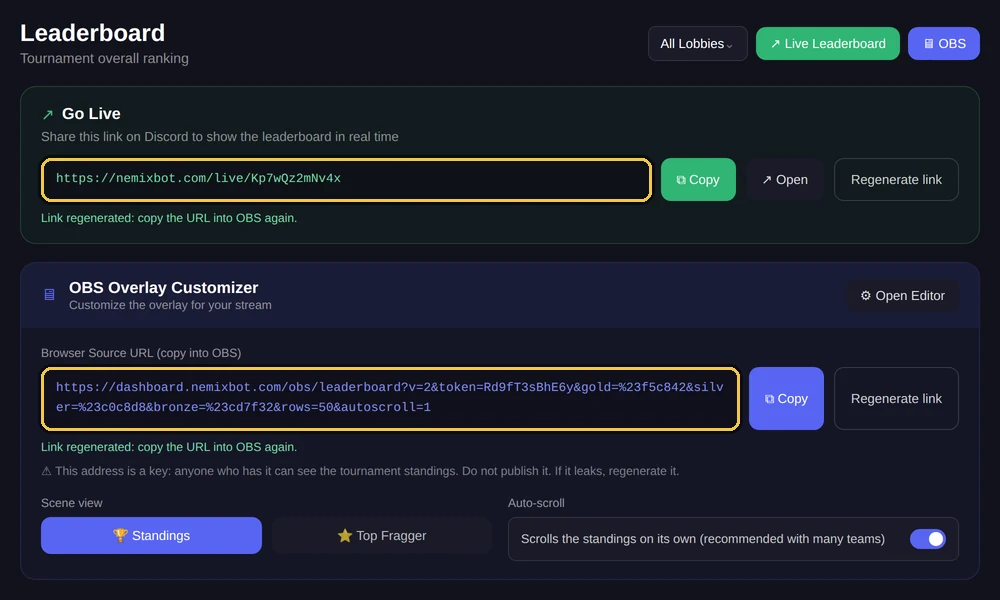
The panel gives you two addresses, and they are not the same thing. The public link is made to be shared: you post it on Discord and whoever opens it follows the standings from their phone. The scene address is the one you paste into OBS, and it should not be published.
Each has its own Regenerate button, and they are independent: regenerating the scene address does not take down the page you shared with the audience, and regenerating the public link does not interrupt the scene you have on air.
Heads up
Tournaments created before this split still use a single key for both uses, and the panel tells you so. You do not have to do anything: they keep working as always. On the first regeneration they separate on their own, and the old address stays valid for the other use instead of dying.
Why the scene address is a key
Whoever has the address sees the standings without logging in. It is not your account password and it gives access to nothing else: it only opens that tournament standings, read only. Still, it is an address to handle with care, and how much it matters depends on how you are running the tournament.
- Private tournament, standings not shared with anyone: here the address really matters, because it is the only way to see results from outside.
- Standings already public, link shared on Discord: if the scene address leaks you are not losing anything secret, because those results are already visible to everyone. Regenerating it is about taking back control of your scene, not protecting data that is already out there.
Heads up
Do not publish the scene address and do not leave it in a dashboard screenshot. If it leaks, or if you gave it to a collaborator who no longer works with you, open the panel and press Regenerate: a new one comes out and has to be copied into OBS again.
Anyone opening a link that has been regenerated does not sit in front of a page loading forever: they see that the link is no longer active and that they should ask the organiser for the new one.
Customising the scene
In the panel OBS box, the Open Editor button shows the controls. Every change ends up in the address: when you are done, copy the URL again and paste it back into OBS.
| Control | What it changes |
|---|---|
| Main colours | Background, text and accent colour, the one used for points |
| Podium colours | Gold, silver and bronze of the top three teams |
| Transparency | From solid background to fully transparent |
| Card opacity | How much body the team cards have: over a transparent background it keeps them readable on top of the game |
| Card colour | The fill colour of the cards; with a light colour the text switches to dark on its own |
| Team logos | Shows the logo each team uploaded next to its name; teams without one leave no gaps |
| Server logo | Your logo in the header instead of the NEMIX one, if you uploaded it in the panel |
| Font | Eight typefaces, from the most neutral to the gaming ones |
| Size | Scales the whole scene up or down, not just the text |
| Visible rows | How many teams fit in the scene |
| Corners | Square, rounded or pill shaped |
| Visible elements | Hides header, position, kills or points |
| Animations and effects | How rows come in, and whether to highlight who changes score |
| Speed | How fast the automatic scrolling runs |
| Language | Italian, English or Spanish for the scene labels |
Transparent background
Taking transparency to the minimum removes the background: in OBS only the standings remain, with the game showing underneath. This is the normal way to use it as an overlay.
How often it updates
The scene asks for fresh data every 5 seconds, which is the starting value. From the panel you can set it between 1 and 60 seconds, and the choice applies to that single scene: you can keep the ticker snappier and the full standings calmer.
Note
Going below 5 seconds only makes sense if you are already watching results land live. Several very fast scenes on the same connection make everything work harder: if you do not need it, leave it as is.
Styling the Live page
The editor has two tabs: OBS scenes and Live page. They are two separate sets of values: you can keep the on-air scene transparent and the public page in your server colours, without one touching the other.
In the Live page tab the Apply style button saves the style server-side: the link you already shared or embedded updates itself, with no new URLs to hand out. If you save no style, the page inherits the server branding: team logos on, and your logo in the header if you uploaded one.
Note
On the public page, bottom right, a small clickable "Powered by NEMIX" signature remains — discreet, and only there: on-air OBS scenes never show it.
Match point and winner
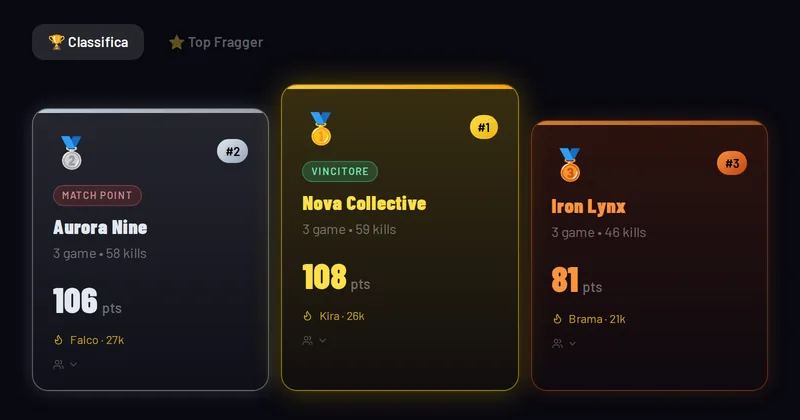
In match point tournaments the scene shows on its own who has reached the threshold and who has already won their lobby, without you telling the panel anything.
- MATCH POINT in red, pulsing, on the teams that reached the threshold.
- WINNER in green on the team that closed out its lobby.
If something is off
The scene stays black or empty
Almost always the address is incomplete: copying it by hand off the screen makes it easy to lose the last part. Go back to the panel, press Copy and paste again. If you see the notice that the link is no longer active, that address was regenerated: take the new one from the panel.
The background is not transparent
Transparency travels inside the address, so changing it in the editor is not enough: you have to copy the URL again and paste it back into the Browser source. If you edited the address by hand, start over from the Copy button.
Long names get cut off
It depends on the font and the source width. Try in this order: reduce the size, widen the source in OBS, or pick a narrower font. Condensed typefaces fit more letters in the same space.
The standings are not updating
Top right the scene shows LIVE when it is receiving data and Offline when it is not. If it stays Offline for a while, the problem is between OBS and the network: try refreshing the Browser source from its properties.
Do you also need the team stream wall and the director console, not just the standings? That is multistream, on the Plus plans.Frequently asked questions
Do I need a Plus plan for live standings?
No. Live standings are included in every plan, trial included. The Plus plan is for multistream, which collects the teams streams and is a different tool.
Do I need to install anything in OBS?
No. You only need a Browser source with the scene address, which is a standard OBS feature. It also works with other software that accepts web pages.
Can I have several different scenes of the same tournament?
Yes. Every combination of layout, view and colours is its own address: prepare as many as you like, put them in different OBS scenes and switch between them from the mixer.
If I regenerate the scene address, does the audience lose their link?
No, they are two independent keys with two separate buttons. On older tournaments, which still use a single one, the panel says so and the first regeneration separates them without switching anything off.
What does someone see if they open a link I regenerated?
A page saying the link is no longer active and to ask the organiser for the new one, in their language. They are not left staring at a loading screen.
Do the standings work before the tournament starts?
The address can be prepared and tested in advance. Results appear as they are recorded, so before the first game the scene is empty but already connected.