Multistream y realización
Retransmitir un torneo de varias lobbies suele significar tener veinte pestañas abiertas y cambiar de escena a mano. El multistream de NEMIX recoge los streams de los equipos inscritos, te dice quién está en directo y te da una URL para pegar en OBS como Browser Source, que se actualiza sola mientras avanza el torneo.
Planes Plus
El multistream está incluido en los planes Plus: Starter Plus, Pro Plus y Anual Plus. El acceso va ligado al servidor en el que está activa la licencia, no solo a tu cuenta.
De dónde salen los streams
No tienes que recoger nada a mano. El enlace del stream es uno de los campos del formulario de inscripción: cuando un equipo se registra y lo rellena, su canal entra automáticamente en el multistream de ese torneo.
- Los equipos sin enlace simplemente se saltan: no rompen nada.
- Puedes hacer el campo obligatorio, si quieres que retransmitan todos.
- Si un capitán se equivoca con el enlace, lo corriges desde el dashboard sin rehacer la inscripción.
Nota
El campo del enlace de streaming está descrito en detalle en la página de inscripciones de los equipos.
El muro de streams
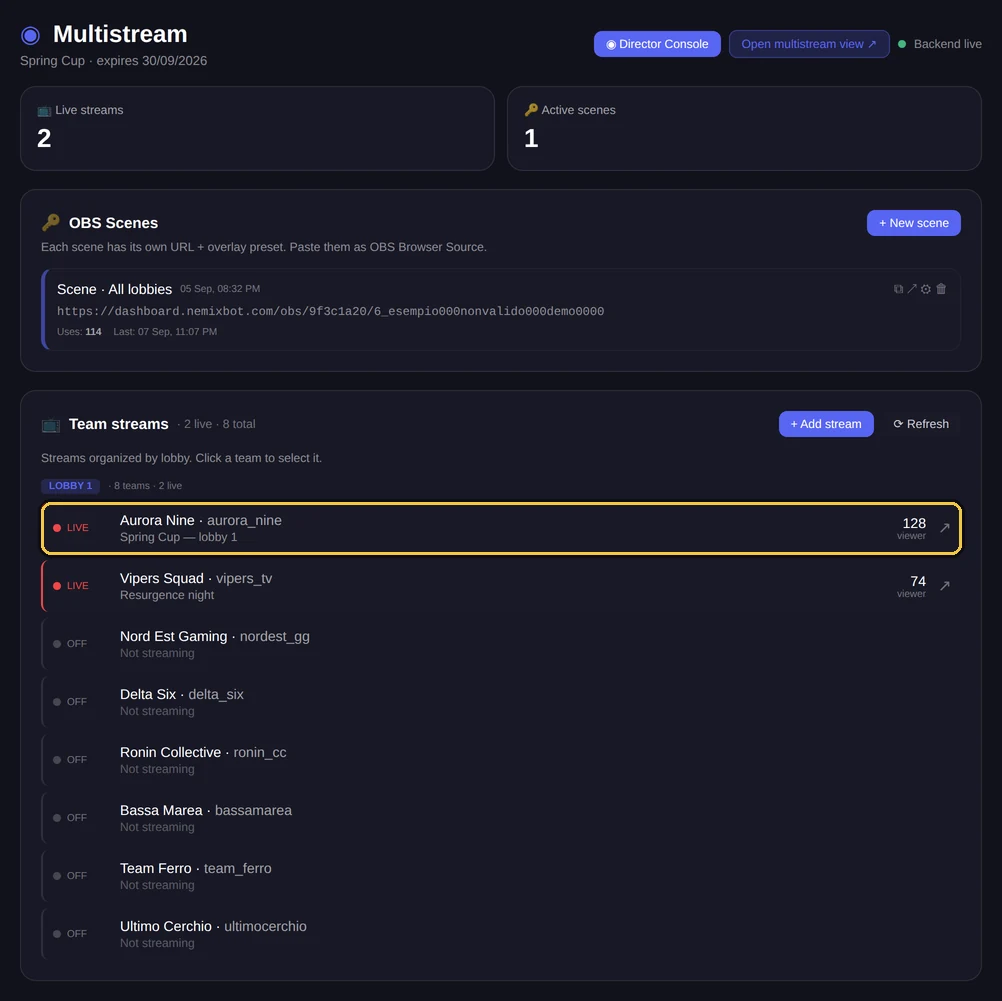
En el dashboard, la sección Multistream muestra todos los equipos con un stream vinculado. De cada uno ves si está en directo ahora mismo, el título de la retransmisión, la lobby a la que pertenece y los puntos que lleva.
- Estado en directo u offline leído directamente desde Twitch, no declarado por el equipo.
- Filtro por lobby, para seguir una sola lobby a la vez.
- Puntos, kills y partidas jugadas junto a cada stream, actualizados con el torneo.
- Cada recuadro se abre en Twitch con un clic, si necesitas la fuente original.
Las escenas de OBS
Una escena es una URL que pegas en OBS como Browser Source. Cada escena tiene su dirección y su preset de overlays, así que puedes preparar varias y pasar de una a otra desde el mezclador de OBS como con cualquier otra escena.
- 1En el dashboard, sección Multistream, creas una escena.
- 2Copias la URL que aparece junto a la escena.
- 3En OBS añades una fuente Browser y pegas la URL.
- 4La página se actualiza sola: no hace falta recargar en cada partida.
Atención
La URL de la escena es una llave de acceso: quien la tiene ve la escena sin hacer login. No la publiques. Si se te escapa, revócala desde el dashboard y genera otra: la dirección antigua deja de funcionar al momento.
Que la URL no pida login es a propósito: OBS no tiene un navegador con tu sesión, así que la escena tiene que poder funcionar sola. Por eso se puede revocar en cualquier momento.
La consola de realización
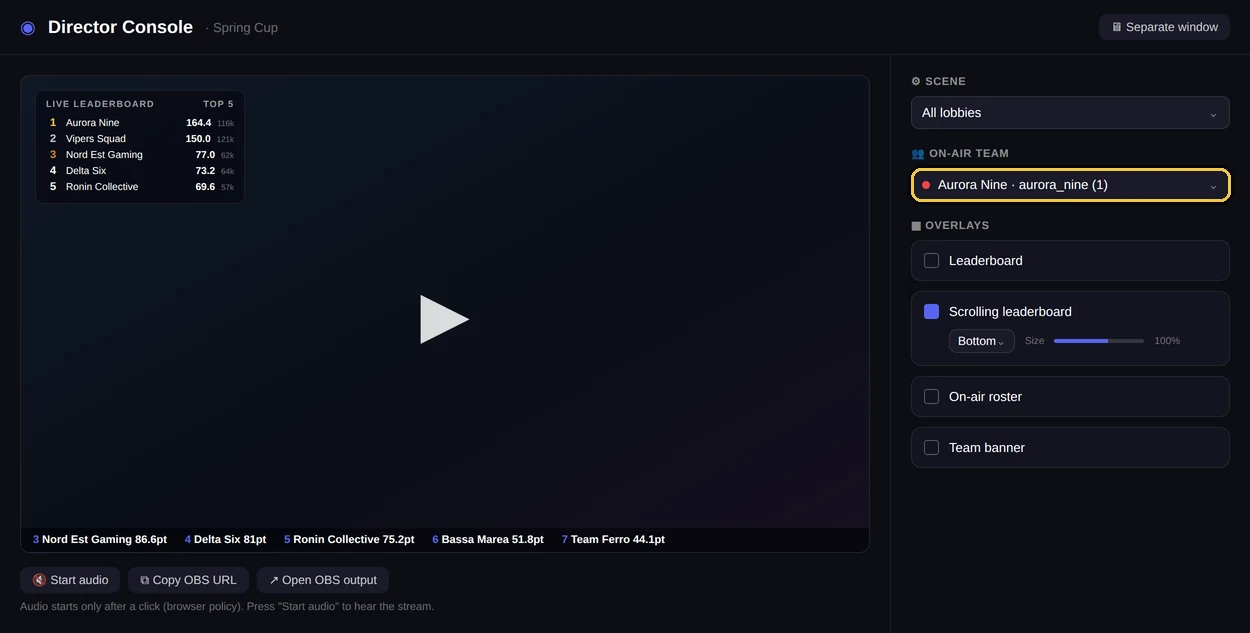
La consola de realización es el panel desde el que manejas la escena mientras estás en el aire, sin tocar OBS y sin cambiar la URL. Lo que decides aquí se refleja en la escena que ya está en pantalla.
| Control | Qué hace |
|---|---|
| Stream principal | Elige qué stream ocupa el recuadro grande. Los demás quedan de acompañamiento. |
| Lobby | Limita la escena a una sola lobby, o las muestra todas. |
| Overlays | Decide qué aparece encima del vídeo: clasificación, puntuaciones, nombres de los equipos. |
La ventaja práctica es que cambias el encuadre durante el directo sin tocar la configuración de OBS: la fuente sigue siendo la misma, cambia lo que muestra.
Si solo necesitas la clasificación
El multistream recoge los streams de los equipos. Si lo único que necesitas es la clasificación actualizándose sobreimpresa, existe una herramienta aparte, más sencilla y disponible en todos los planes.
¿Solo necesitas la clasificación sobreimpresa? Clasificación en vivo para OBS, incluida en todos los planes.Nota
Las dos herramientas son independientes y puedes tener las dos en escena en OBS: el muro de streams como fondo y la clasificación encima.
Prepararse bien para el directo
- Pide los enlaces de streaming en la inscripción, no el día de la final: recogerlos después es la forma más segura de perder la mitad.
- Crea y prueba las escenas antes de que empiece el torneo: la escena muestra los equipos de ese torneo, pero la URL la puedes probar con antelación.
- Ten lista una segunda escena con otro overlay: cambiar de preset en directo es más rápido que reconfigurar.
- Cuando acabe el torneo, revoca las escenas que ya no necesites. Cuesta un clic y cierra el acceso.
Preguntas frecuentes
¿El multistream está incluido en todos los planes?
No, está incluido en los planes Plus. La comprobación se hace sobre el servidor desde el que usas el dashboard, así que la licencia tiene que estar activa en ese servidor.
¿Tengo que instalar algo en OBS?
No. Solo hace falta una fuente Browser con la URL de la escena, que es una función estándar de OBS.
¿Qué pasa si un equipo se cae del directo durante el torneo?
El estado en directo viene de Twitch, así que la escena se da cuenta sola y lo muestra como offline. Puedes filtrar la vista o cambiar el stream principal desde la consola.
¿Puedo pasarle la URL de la escena a un colaborador?
Sí, pero trátala como una contraseña: quien tiene la dirección ve la escena sin login. Si necesitas cortar el acceso, revoca la escena y genera una nueva.
¿Hace falta el multistream para tener la clasificación sobreimpresa?
No. La clasificación en vivo es una herramienta aparte, disponible en todos los planes, con su propia página de guía. El multistream sirve cuando además quieres los streams de los equipos.
Pruébalo en tu servidor
Invita a NEMIX y escribe !setupticket: 14 días completos, sin tarjeta.